Install BrightQ-Pro
BrightINSTALL can run through X11 or using a terminal-oriented menu. It detects the OS/architecture, installed printing system, and existing BrightQ configuration.
Before you begin
Section titled “Before you begin”- Check requirements and printing-system support.
- Obtain the BrightQ-Pro installer for your platform from an authorized source.
- Check the installer README for prerequisites, fixes, and compatibility differences.
- Make a backup of print spooler configuration and confirm that you have permission to administer the host.
Start the installer
Section titled “Start the installer”BrightINSTALL uses platform-specific .run installers. From the directory containing the installer:
sh ./<downloaded-brightq-installer>.runUse the exact file name and vendor guidance for your distribution; do not copy a filename from an old screenshot. The installer may ask for administrative credentials.
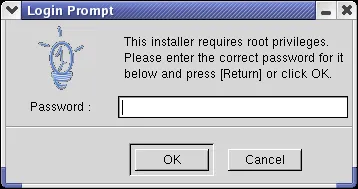
BrightINSTALL login prompt with an empty administrator password field.
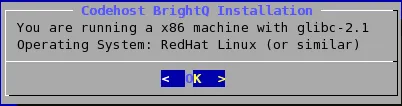
Terminal installer identifying the operating system and architecture.
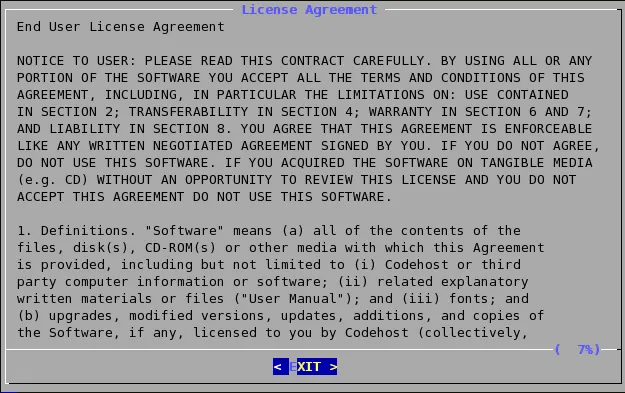
Installer license agreement screen.
Recommended installation
Section titled “Recommended installation”Choose Recommended for the installation choices selected by BrightINSTALL, including default paths and the detected printing system. Review all choices before proceeding.
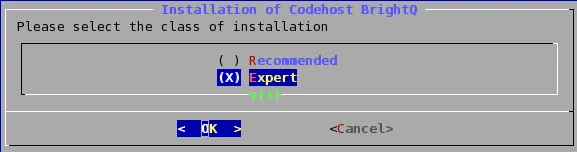
Terminal installer with Recommended and Expert installation classes.
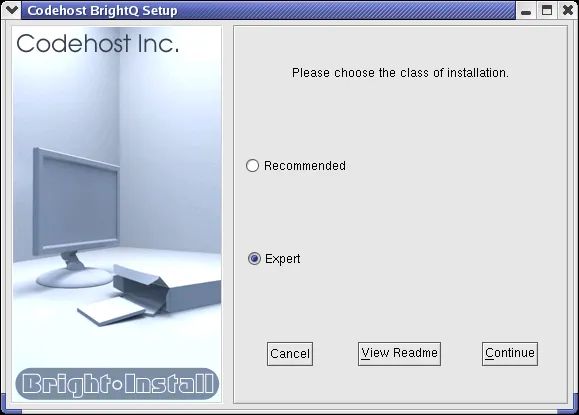
Graphical BrightINSTALL setup with Recommended and Expert installation choices.
Expert installation
Section titled “Expert installation”Expert mode can change:
| Choice | Default / description |
|---|---|
| Install path | /usr/local/brightq |
| Binary link path | /usr/bin |
| Print system | Detected CUPS, LPR/LPD, System V or AIX Native, depending on OS |
| Common files | Required |
| Desktop menu entries | KDE/GNOME/CDE where supported |
| Replace standard printing commands | Can map lp / lpr to PJM |
Expert installer screens
Section titled “Expert installer screens”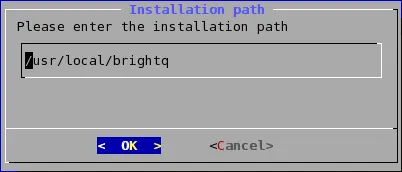
Terminal installer showing the installation path field.
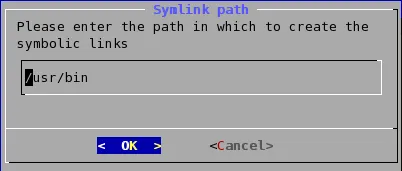
Terminal installer showing the symbolic link path field.
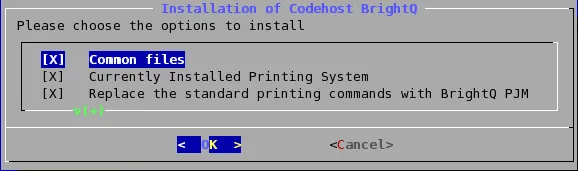
Terminal installer showing common files, the detected printing system, and command replacement options.
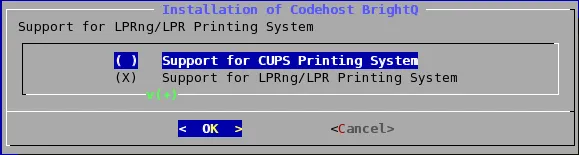
Terminal installer offering CUPS and LPRng/LPR printing systems.
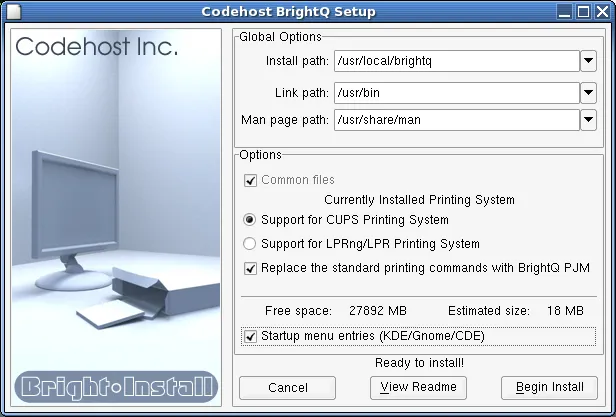
Graphical Expert installer showing paths and CUPS or LPRng/LPR options.
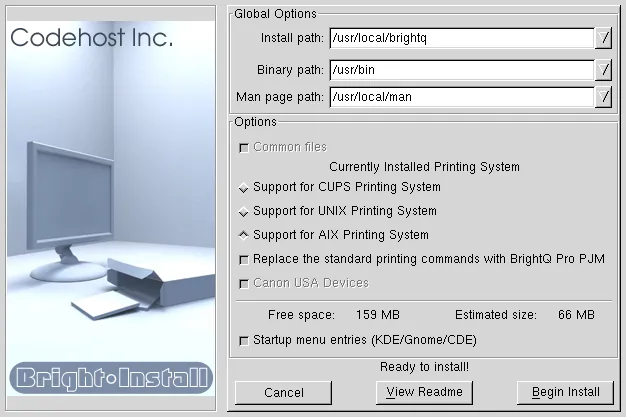
Graphical Expert installer showing additional UNIX and AIX printing system choices.
After installation, proceed to licensing and printer setup.