Manage printers and queues
The Printer menu in the Configuration Tool includes adding printers, adding classes, importing/exporting queues, duplicating queues, removing printers, and selecting a default.
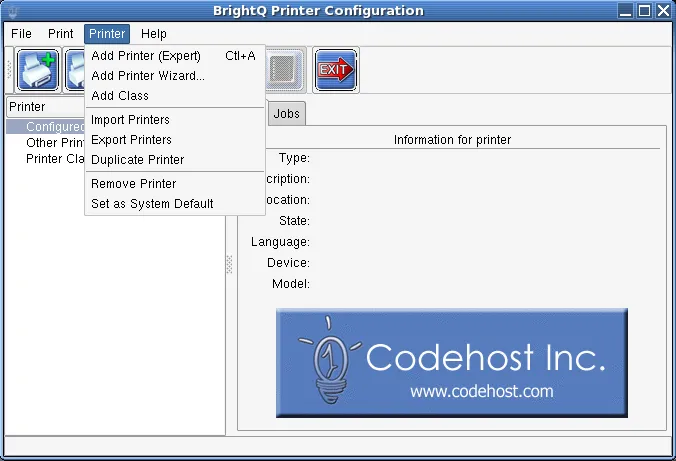
Configuration Tool Printer menu listing add, import, export, duplicate, remove, and default operations.
Operations
Section titled “Operations”| Task | Graphical tool | Shell command |
|---|---|---|
| List queues | Configured Printers list | codehost-config -a |
| Show queue alerts | Device/queue status | codehost-config -q |
| Set default | Printer → Set as system default | codehost-config -d QUEUE |
| Remove queue | Printer → Remove Printer | codehost-config -r QUEUE |
| Update queue metadata | Queue properties | codehost-config -u QUEUE -D DESCRIPTION -L LOCATION |
| Create a printer class | Printer → Add Class | codehost-config -A CLASS QUEUE1 QUEUE2 |
The command-line class operations are available only for CUPS and System V systems.
Managing a printer class
Section titled “Managing a printer class”A class pools existing queues. For example:
codehost-config -A floor-3 printer-a printer-bRemove a printer from an existing class:
codehost-config -R floor-3 printer-bTo remove the entire class, use codehost-config -R floor-3. Review the actual targets before removing queues or classes.
Import and duplicate dialogs
Section titled “Import and duplicate dialogs”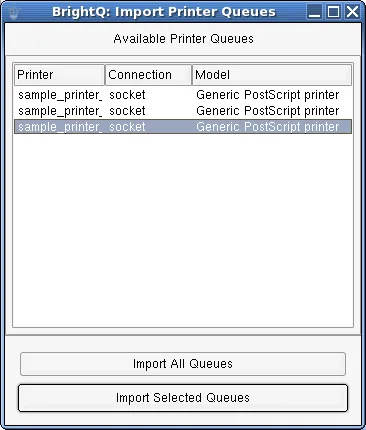
Import Printer Queues dialog with available queues and controls to import all or selected queues.
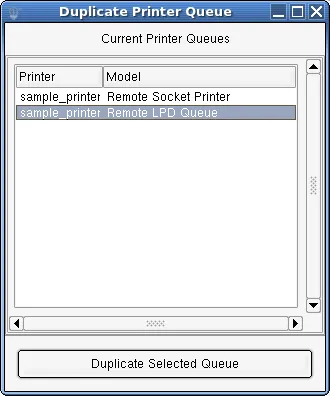
Duplicate Printer Queue dialog with an example queue selected.
Queue state
Section titled “Queue state”BrightQ-Pro distinguishes Accepting / Rejecting Jobs from Enabled / Disabled. A disabled queue may accept incoming jobs without printing them until re-enabled; a rejecting queue refuses new jobs. The exact behavior depends on the spooler.
Use the Configuration Tool’s Jobs/Info tabs to inspect and manage jobs. Non-administrator users may be limited to their own jobs.