Add a printer manually
Use Printer → Add Printer (Expert) (Ctrl+A) when you know the printer model and connection settings.
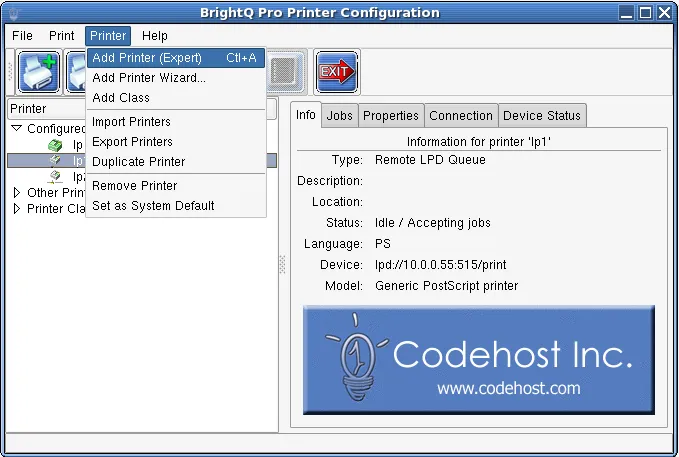
Configuration Tool Printer menu highlighting Add Printer Expert.
The configuration dialog has four major tabs:
| Tab | Purpose |
|---|---|
| Model | Select printer manufacturer, model and installed accessories. |
| Connection | Select local or network transport and associated address and parameters. |
| Properties | Set driver-specific defaults. |
| Queue | Choose name, description, location and optional system default. |
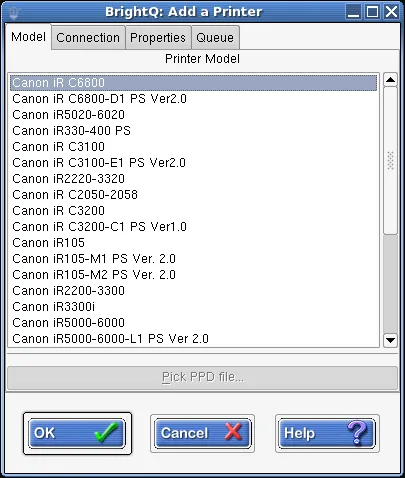
Expert Add Printer dialog listing installed Canon printer models.
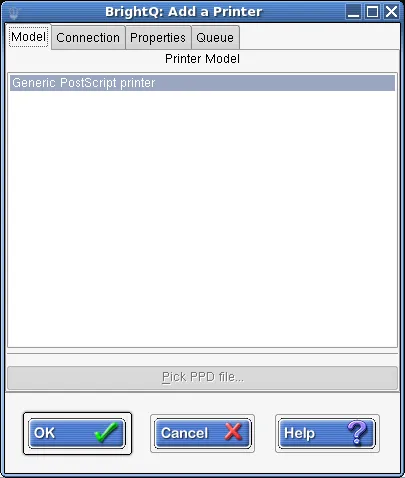
Expert Add Printer dialog with a Generic PostScript printer model selected.
- Choose Add Printer (Expert).
- Select the installed printer model and its accessories.
- Choose and configure a connection.
- Set the print options to be used as queue defaults.
- Name the queue and optionally designate it the system default.
- Save, then submit a test print.
The Configuration Tool distinguishes printers it manages from printers configured outside BrightQ-Pro; features available on external queues depend on the print system and installed drivers.
Queue properties
Section titled “Queue properties”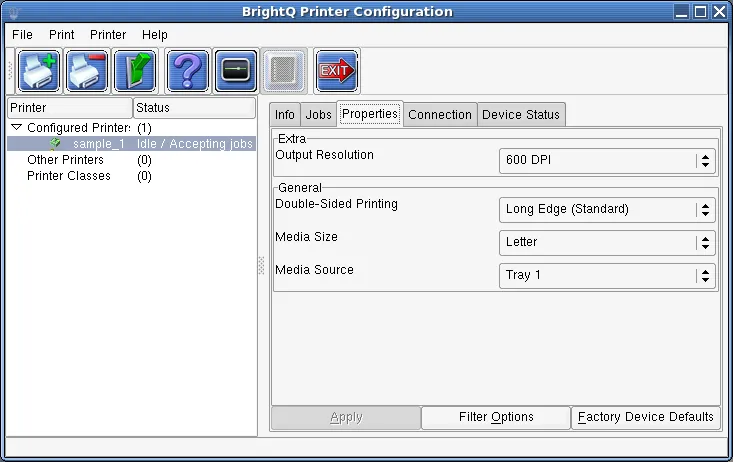
Configuration Tool Properties tab showing driver-specific defaults and Filter Options.