Manage printer queues
The Configuration Tool displays BrightQ-managed and other configured printers. Select a printer to examine its information, jobs, properties, connection, and device status. Administrative actions typically require elevated privileges.
Queue naming limits
Section titled “Queue naming limits”| Print system | Maximum queue name length |
|---|---|
| System V LP (including Solaris) | 14 characters |
| AIX Native | 20 characters |
| CUPS and LPRng | 25 characters |
| BSD LPR on Linux/FreeBSD | 14 characters |
These are BrightQ-Pro queue naming limits; the underlying spooler may impose additional restrictions.
Queue status
Section titled “Queue status”An enabled queue accepts and processes jobs. A disabled queue can accept new jobs without processing them; a rejecting queue refuses incoming jobs. The combination determines whether the queue accepts or prints documents.
Set the default printer
Section titled “Set the default printer”Use the Printer menu or queue context menu to set a system default (requires suitable permissions). Individual users can select their own default where the print system supports it.
Printer classes
Section titled “Printer classes”On CUPS and System V print systems, a class groups queues under a shared name so jobs can be directed to an available member. BSD LPR does not support classes. Create a queue first, then use Printer → Add Class, or the CLI.
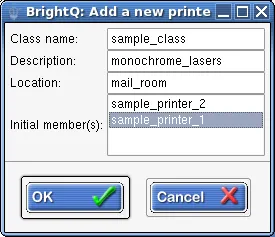
Add a new printer class dialog with a class name, description, location, and initial members.
Also see queue monitoring.