Print documents and test pages
After creating a print queue, print a test page from the Configuration Tool to check that the connection and selected driver are correct.
Graphical printing
Section titled “Graphical printing”- Open the Configuration Tool and select the printer.
- Use Print → Test Page to test the queue, or Print → Print Document to select a file.
- If Print Job Manager appears, select media, copies and finishing options.
- Submit and monitor the job from the queue’s Jobs tab.
The Configuration Tool can print PostScript, PDF, images, and plain text directly.
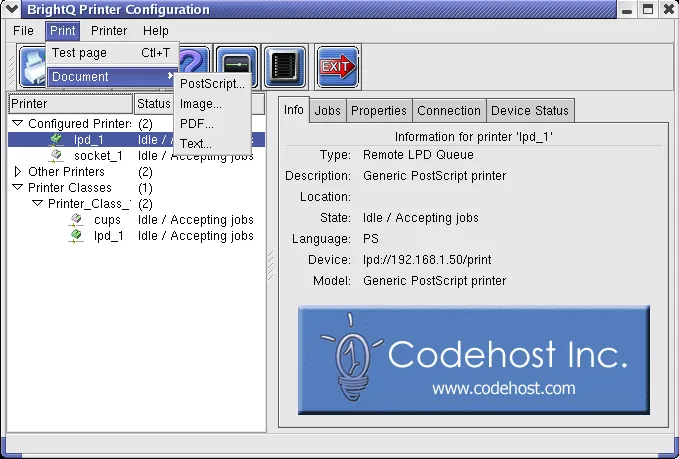
Configuration Tool Print menu showing Test Page and PostScript, image, PDF, and text document choices.
Noninteractive printing
Section titled “Noninteractive printing”Submit a document from the command line:
pjm --no-gui -P office /path/to/file.pdflp -d office /path/to/file.pdflpr -P office /path/to/file.pdfThe available lp/lpr options depend on your print system and whether BrightINSTALL integrated PJM with those commands. See command-line printing before changing scripts.