Device status monitoring
Esta página aún no está disponible en tu idioma.
BrightQ-Pro includes a Device Status panel that can monitor selected devices and show their availability or alerts. Device status polling uses SNMP where the target device supports it.
The fields available depend on the public and printer-specific SNMP management information bases (MIBs) exposed by the device. A reachable printer can therefore report fewer configuration or status details than another model.
Enable monitoring
Section titled “Enable monitoring”- Open the Configuration Tool and select the target printer.
- Open the Device Status tab.
- Enable status monitoring when the option is available to your user account.
- Refresh to retrieve the latest status.
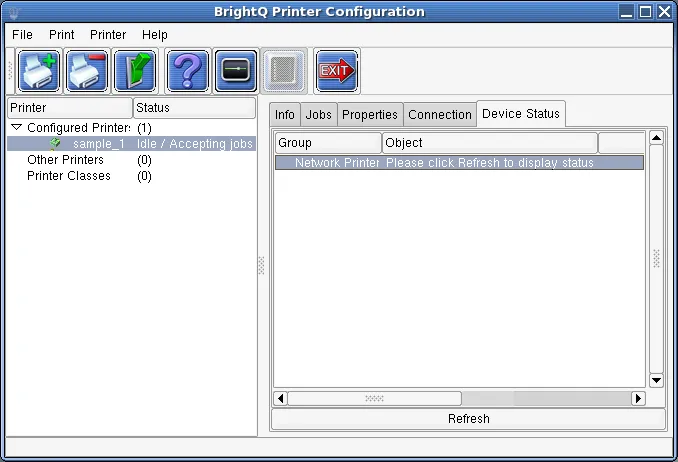
Device Status tab reporting that monitoring is disabled.
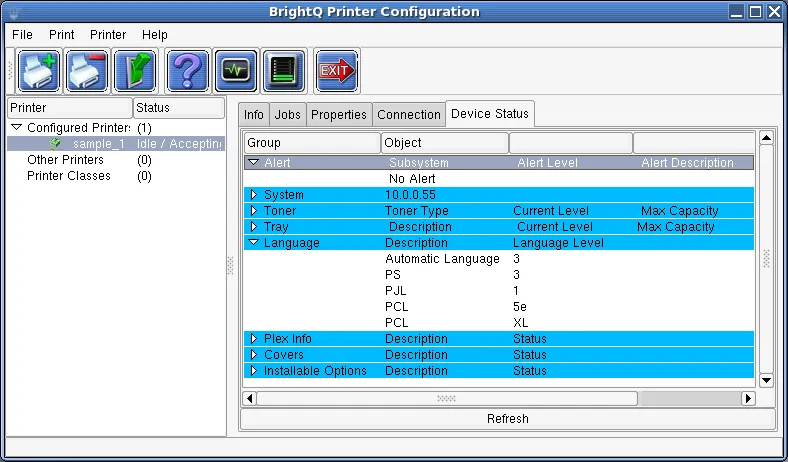
Device Status tab showing enabled monitoring with no alert.
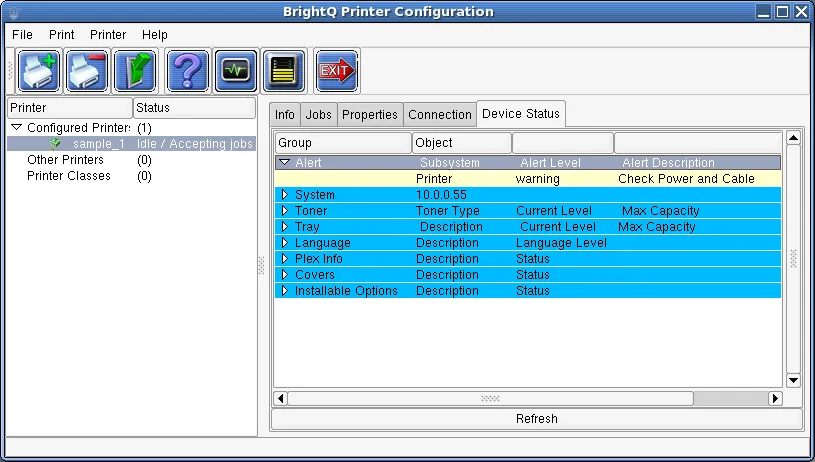
Device Status tab showing a yellow warning to check printer power and cable.
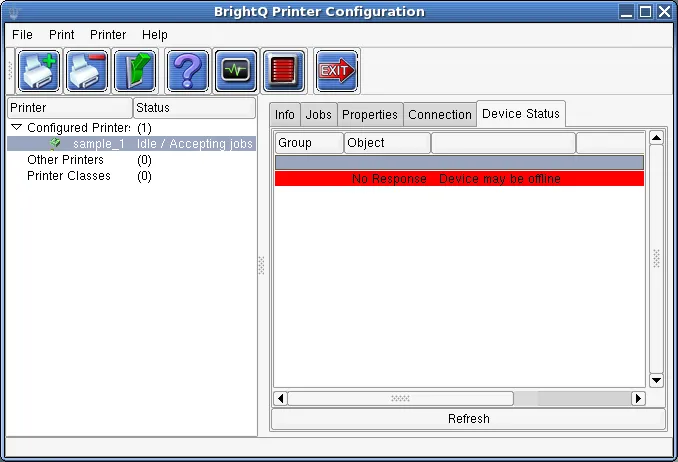
Device Status tab showing a red No Response alert for a possibly offline printer.
Monitoring options
Section titled “Monitoring options”Under File → Options → Global Options, configure:
| Setting | Documented default | Effect |
|---|---|---|
| SNMP Timeout | 1,000 ms | How long to wait for an SNMP query before timeout. |
| Monitoring Interval | 15 seconds | How frequently monitored devices are queried. |
Very short polling intervals can load devices or delay the interface. Avoid enabling SNMP across untrusted networks without reviewing network controls and device settings.
To list queue alerts in the shell:
codehost-config -qThe Print Job Manager may also show green, yellow and red status indicators.