Configuration Tool menus
Esta página aún no está disponible en tu idioma.
The BrightQ-Pro Configuration Tool is the main graphical administrative interface. Launch it from the installed desktop menu or run:
codehost-configThe interface exposes a configured-printers list and menu options for registering and licensing, adding/removing queues, printing test pages, selecting defaults, viewing jobs, and reviewing printer status.
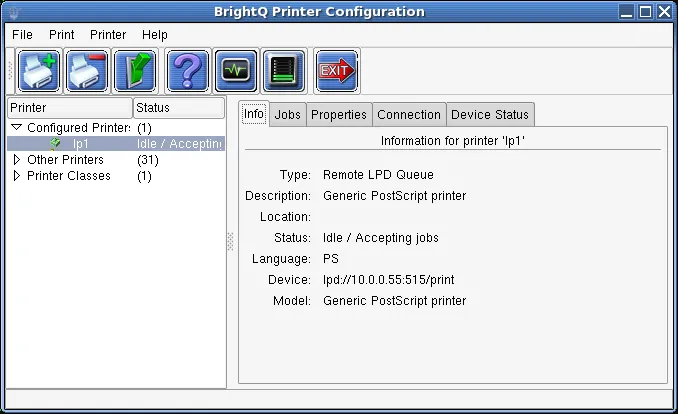
Configuration Tool showing configured printers and the Info tab.
File → Options
Section titled “File → Options”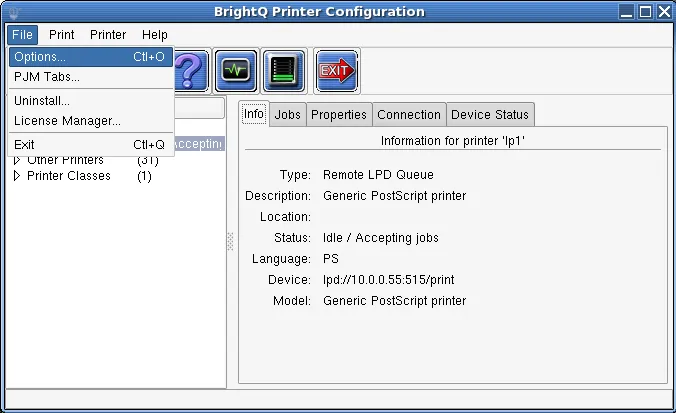
Configuration Tool File menu with Options, PJM Tabs, Uninstall, and License Manager entries.
The available options depend on the configured print system:
- Global: SNMP timeout and monitoring interval.
- CUPS: Server location, port, encryption policy, daemon restart, filter capabilities for other queues, and related paths.
- BSD / System V: Printcap or printers database paths, remote LPD server, daemon restart and filter behavior.
- AIX Native: Platform-specific spooler configuration.
Other configured printers
Section titled “Other configured printers”Existing queues can appear under Other Printers even when they were created outside BrightQ-Pro. Their appearance does not mean every setting can be changed through BrightQ-Pro.
For CUPS queues with a PPD, Feature selection for other queues enables the available generic and device-specific settings when supported by the package. The separate option to use PJM for other queues controls whether those jobs open Print Job Manager.
On non-CUPS systems, Use conversion filters for non-BrightQ queues exposes generic filter settings. Check that the resulting print language is compatible with the destination printer before using those filters.
Printing-system option dialogs
Section titled “Printing-system option dialogs”The screenshots show example configurations. Choose values appropriate to your printing system.
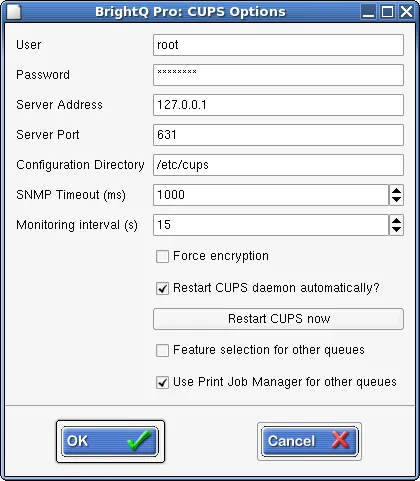
CUPS Options dialog showing server, encryption, monitoring, and filter controls.
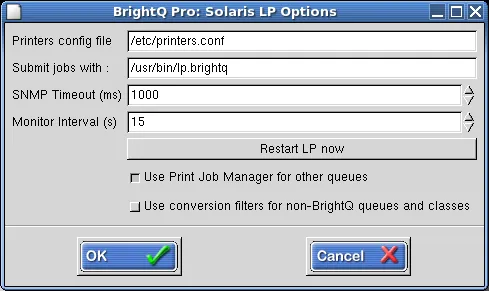
Solaris LP Options dialog showing printers configuration, job submission, and monitoring fields.
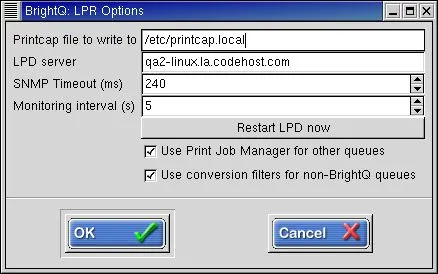
LPR Options dialog with printcap, LPD server, monitoring, and filter settings.
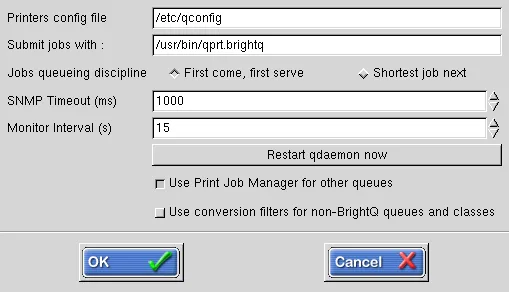
AIX options showing the printers configuration file, job submission command, and queue discipline.
PJM tab visibility
Section titled “PJM tab visibility”Use File → PJM Tabs to select the tabs shown to the current user in Print Job Manager. If a tab is missing in one user’s session, check that user’s tab selections.
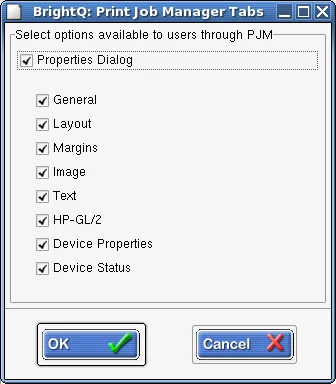
Print Job Manager Tabs dialog with controls for showing or hiding properties tabs.
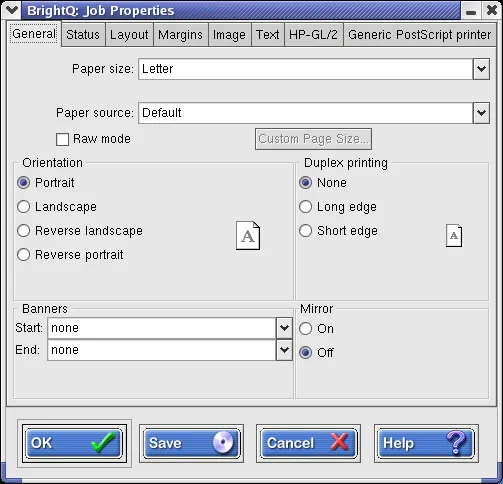
Job Properties dialog illustrating the tabs selected in the Configuration Tool.
Printer menu
Section titled “Printer menu”The printer menu supports Add Printer (Expert), Printer Installation Wizard, Add Class (where supported), Import/Export, Duplicate, Remove and Set as System Default.
Queue tabs
Section titled “Queue tabs”- Info: Queue name, state, type, language, URI and model.
- Jobs: Pending/processing/completed jobs, owner, job ID and priority.
- Properties: Driver- and model-dependent options.
- Connection: Transport details and filter/PJM behavior.
- Device Status: Printer alerts and optional status monitoring.
Use queue management for routine operations, and manual setup to configure new printers.