Add a printer using the wizard
Esta página aún no está disponible en tu idioma.
The Printer Installation Wizard is the recommended graphical setup path for BrightQ-Pro printers.
For Canon printers, check the supported model/controller combination and the package’s Canon_options.txt before choosing the driver and accessories.
- Open the Configuration Tool and choose Add Printer.
- Select Local printer (parallel, USB, serial, or file) or Remote printer (LPD, IPP, socket, or SMB).
- Configure the connection. For remote printing, optionally use Discover Network Printers and provide a protocol, port, and address or range.
- Choose the printer OEM, model, installable accessories, and default driver features.
- Enter the queue name, description/location, filter and PJM settings, and decide whether to use the queue as the system default.
- Review the confirmation and optionally Print Test Page before finishing.
The five-step wizard groups the selections above into printer type, connection, model and options, queue settings, and confirmation.
Wizard screens
Section titled “Wizard screens”Step 1: Printer type
Section titled “Step 1: Printer type”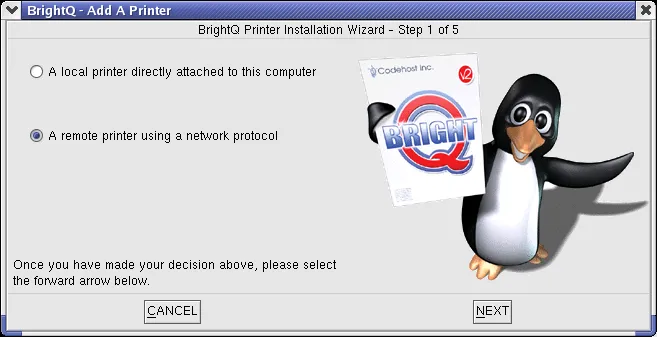
Printer Installation Wizard step 1 selecting a local printer or a remote network printer.
Step 2: Connection
Section titled “Step 2: Connection”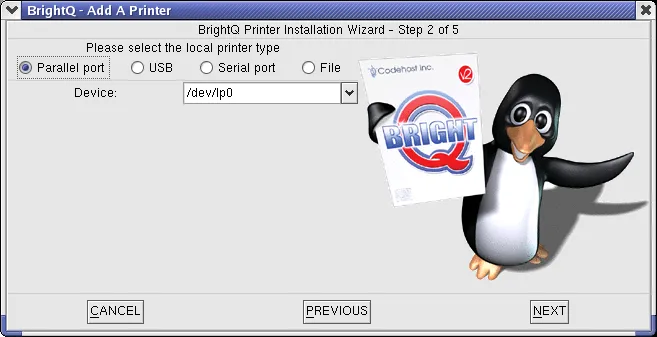
Printer Installation Wizard step 2 with parallel, USB, serial, and file connection choices.
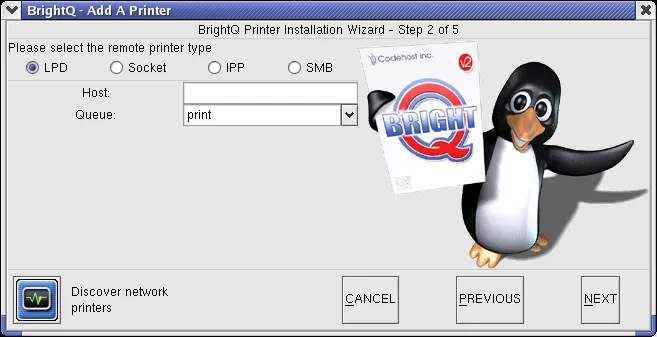
Printer Installation Wizard step 2 with LPD, socket, IPP, and SMB connection choices.
Remote discovery
Section titled “Remote discovery”The wizard can scan for LPD, IPP, socket, SMB, or custom services by hostname, IP address, or address range. Limit the range to what you manage and have permission to scan. If discovery fails, enter the connection details manually.
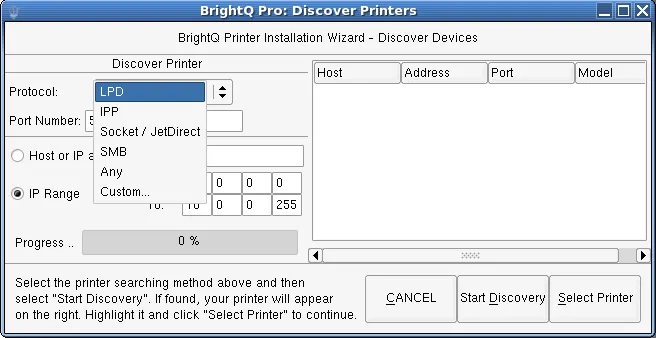
Discover Printers dialog with the protocol selection menu open.
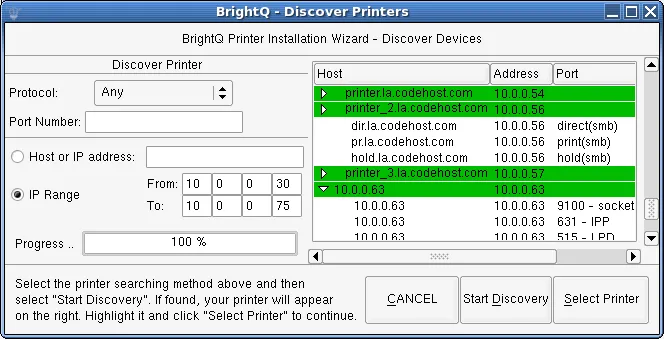
Discover Printers dialog displaying example network discovery results.
Step 3: Model and options
Section titled “Step 3: Model and options”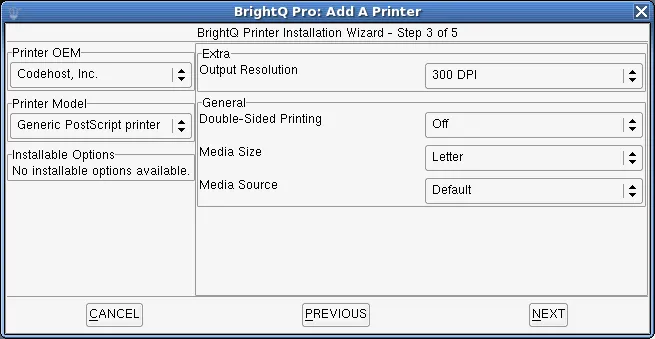
Printer Installation Wizard step 3 selecting the OEM, printer model, accessories, and driver options.
Step 4: Queue settings
Section titled “Step 4: Queue settings”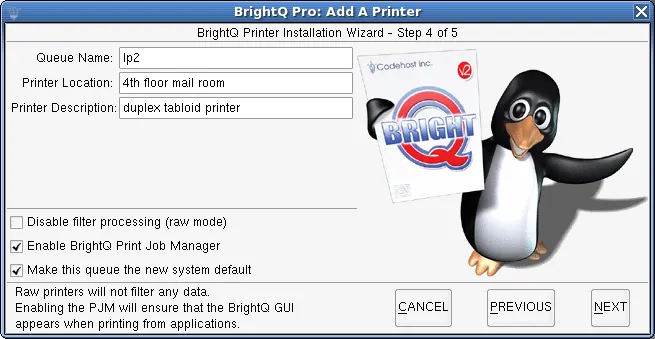
Printer Installation Wizard step 4 showing queue name, location, description, filtering, and default settings.
Step 5: Confirmation
Section titled “Step 5: Confirmation”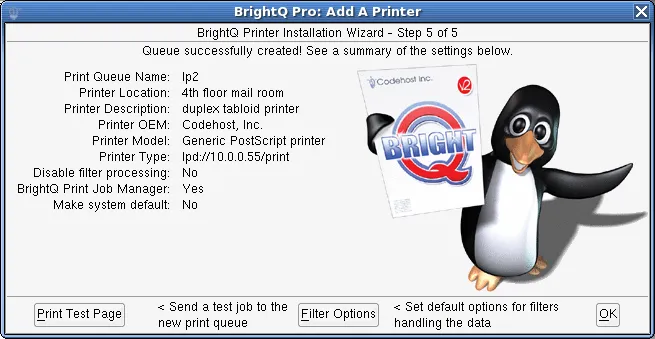
Printer Installation Wizard step 5 summarizing the configured queue with Test Page and Filter Options buttons.
For troubleshooting a failed setup, check protocols and connection formats.